GE Universal Remote Codes: Simple Guide to Setup, Programming & Troubleshooting
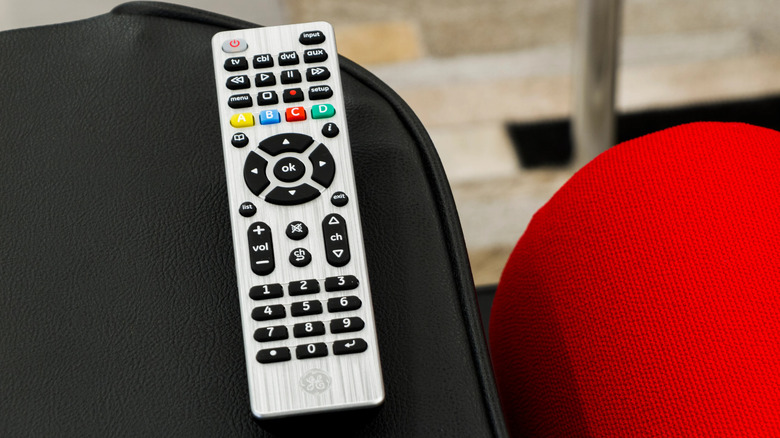
When it comes to simplifying our entertainment setup, nothing beats a universal remote. Instead of juggling multiple remotes for TV, DVD, sound system, or streaming devices, we can control everything with just one. That’s where GE Universal Remotes come in—they’re affordable, easy to use, and surprisingly powerful.
In this complete guide, we’ll walk through everything we need to know about GE Universal Remote Codes, how to program them, common codes for popular brands, troubleshooting tips, and a few smart tricks to make our setup even smoother.
Quick Info About GE Universal Remote Codes
Let’s start with a quick overview so we’re on the same page:
- GE universal remotes are made by Jasco
- They use 4-digit programming codes
- Common codes include: 0001, 0041, 0051, 1001, 6021
- Used for TVs, DVD players, soundbars, streaming devices
- Programming can be done manually or automatically
- Supports major brands like LG, Sony, Samsung, Insignia, and more
Now let’s dive deeper into how everything works.
What Are GE Universal Remote Codes?
GE Universal Remote Codes are special 4-digit numbers that connect your remote to a specific device. Each brand—and sometimes each model—has its own code.
Think of these codes as a “language” that allows the remote to communicate with your device. When we enter the correct code, the remote understands how to control power, volume, channels, and more.
Without the right code, the remote simply won’t respond properly.
Why We Use a GE Universal Remote
There are a few reasons why so many people prefer GE remotes:
- We reduce clutter (no more 3–5 remotes lying around)
- Setup is quick and beginner-friendly
- Works with both old and new devices
- Affordable compared to premium remotes
- Easy to replace if lost or damaged
Whether we’re setting up a home theater or just replacing a lost TV remote, GE remotes are a practical solution.
How to Program a GE Universal Remote (Step-by-Step)
Programming the remote is easier than most people think. Let’s go through the manual method first.
Manual Code Entry Method
- Turn on the device (TV, DVD player, etc.)
- Press and hold the Setup button until the indicator light stays on
- Press the device button (TV, DVD, AUX)
- Enter the 4-digit code
- The light will turn off if the code is accepted
- Test the remote (power, volume, channel)
If the device responds, we’re good to go. If not, we’ll try another code from the list.
Auto Code Search Method
If we don’t know the code, this method helps:
- Turn on the device
- Hold the Setup button until the light stays on
- Press the device button
- Press and release the Power button repeatedly
- When the device turns off, press Enter or OK
This method scans all available codes until it finds the correct one.
Popular GE Universal Remote Codes by Brand
Let’s look at some commonly used codes for major brands. These are not the only ones, but they’re among the most reliable.
LG TV Codes
- 6021
- 0001
- 0051
Sony TV Codes
- 1071
- 5811
Samsung TV Codes
- 0101
- 0071
- 0081
Insignia TV Codes
- 2891
- 0371
Panasonic Codes
- 0251
- 0051
Philips Codes
- 0401
- 0701
Since devices vary by model, we may need to try a few codes before finding the perfect match.
Tips for Finding the Right Code Faster
Let’s be honest—trying multiple codes can feel frustrating. Here are some simple tips to speed things up:
- Start with the most common codes listed above
- Try codes from similar brands if yours isn’t listed
- Keep the device close to ensure signal strength
- Reset the remote if it stops responding
- Use the auto-search method if manual fails
Patience helps here—it usually takes just a few tries.
Common Problems and Easy Fixes
Even though GE remotes are simple, we might run into issues. Let’s solve them quickly.
Remote Not Working After Code Entry
- Try another code
- Make sure batteries are fresh
- Ensure we pressed the correct device button
Some Buttons Work, Others Don’t
- The code may be partially compatible
- Try a different code for better functionality
Remote Not Responding at All
- Replace batteries
- Reset the remote
- Reprogram from scratch
Device Turns Off But Won’t Turn Back On
- The code may be incomplete
- Try another code from the same brand
How to Reset a GE Universal Remote
Sometimes the best solution is starting fresh.
To reset:
- Remove the batteries
- Press and hold the Power button for 10 seconds
- Insert batteries again
- Reprogram the remote
This clears any incorrect settings.
Advanced Features We Can Use
Many people don’t realize GE remotes offer more than basic controls.
Volume Lock
We can lock volume control to one device (like a soundbar), even when using another device.
Master Power Button
Some remotes allow turning off all devices with one button.
Multi-Device Control
We can switch between TV, DVD, and AUX easily using device buttons.
These small features make a big difference in daily use.
Compatible Devices with GE Universal Remote
GE remotes work with a wide range of devices:
- TVs (LED, LCD, Smart TVs)
- DVD and Blu-ray players
- Streaming devices
- Cable and satellite boxes
- Soundbars and audio systems
This flexibility makes them perfect for both modern and older setups.
Manual vs Auto Programming: Which One Is Better?
Both methods have their place.
Manual Method
- Faster if we know the code
- More precise
- Best for experienced users
Auto Search Method
- No need to know the code
- Works for unknown brands
- Slightly slower
In most cases, we start manual, then switch to auto if needed.
How to Maintain Your GE Remote
To keep the remote working smoothly:
- Replace batteries regularly
- Avoid dropping it
- Keep it away from water
- Clean buttons occasionally
A little care goes a long way.
Why GE Remote Codes Sometimes Change
We might notice that codes don’t always work across all devices. That’s because:
- New device models are released
- Manufacturers update internal software
- Some brands share similar code structures
So even if one code doesn’t work, another one usually will.
Final Thoughts
GE Universal Remote Codes might seem confusing at first, but once we understand how they work, everything becomes simple. Whether we’re setting up a new TV or replacing an old remote, the process is quick and manageable.
We just need to remember a few key steps:
- Use the correct 4-digit code
- Try multiple codes if needed
- Use auto search when unsure
- Reset and retry if something goes wrong
With a little patience, we can turn one small remote into a powerful control center for our entire entertainment system.
If we stick with these basics, we’ll never have to deal with remote chaos again.
Stay informed with our latest news and alerts TheTeckJB.